SmartMenu includes a built-in Item Add-Ons and Related Items feature designed to prompt customers with optional or required additions whenever they select a dish on your digital menu.
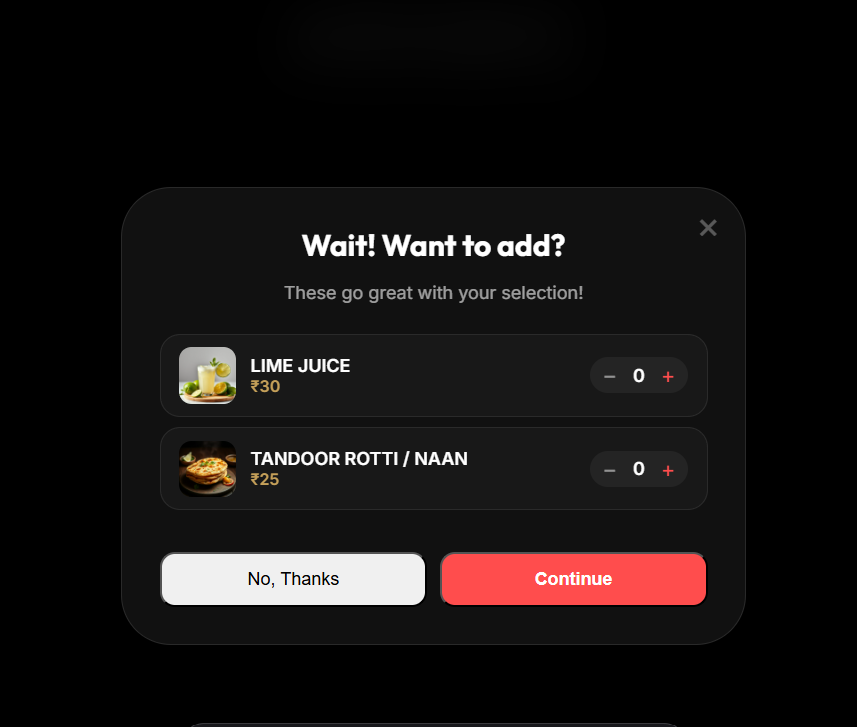
Features of Item Add-Ons and Upselling
- Custom Modal Title and Subtitle: Set personalized popup titles such as "Complete Your Meal" or "Choose Your Add-Ons" along with descriptive instructions.
- Mandatory Selection Count: Specify whether selections are optional (count set to 0) or require the customer to pick a mandatory number of items (count set to 1 or higher) before adding to cart.
- Custom Meal Option: Flag an item as a custom meal to display linked items in a multi-step combo layout.
- Direct Item Linking: Link any existing menu item (beverages, sides, extra toppings, desserts) as an add-on option without re-entering item prices or descriptions.
Step-by-Step Setup Instructions
- Open Menu Builder: Log in to your SmartMenu admin panel and navigate to your menu dashboard.
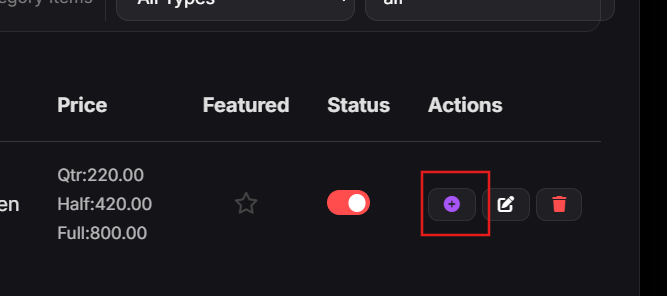
- Open Add-Ons Manager: Locate the target item card on your menu builder grid and click the Add-Ons button on the item card.
- Set Modal Header Text: In the Add-Ons configuration window, enter your custom Title (e.g., "Select Beverage & Sides") and Subtitle (e.g., "Add a drink or side to your order").
- Configure Mandatory Count: Set the mandatory selection count field. Leave at 0 for optional upsell suggestions, or set to 1 or more if the customer must select an option.
- Toggle Custom Meal (Optional): Check the "Is Custom Meal" checkbox if you are creating a structured multi-choice meal combo.
- Select Linked Add-On Items: Browse the item selection checklist and check all menu items you wish to offer as add-on choices for this main dish.
- Save Changes: Click Save Addons. The customization popup will instantly activate on your public menu whenever a customer adds this item to their cart.
Best Practices for Upselling
- Promote Beverages and Sides: Link drinks, fries, and dips to main entrees to increase ticket totals automatically.
- Keep Titles Clear: Use straightforward titles so guests understand what is included or optional.
- Use Mandatory Counts for Base Choices: Use mandatory counts for items requiring a selection, such as choosing a drink flavor or sauce type.
Start configuring Item Add-Ons today to streamline customer selections and increase order value automatically.